Win + R Utility
Livres sur les raccourcis Win + R
Cache Outlook
Pour aller directement dans le répertoire du cache d'Outlook.
%userprofile%\appdata\local\Microsoft\Outlook\RoamCache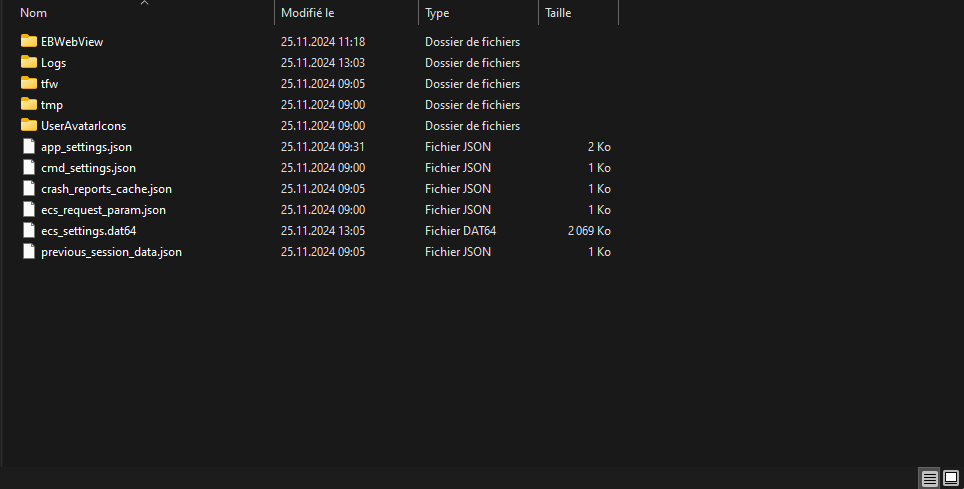
Cache Teams
Pour aller directement dans le répertoire du cache de Teams
%userprofile%\appdata\local\Packages\MSTeams_8wekyb3d8bbwe\LocalCache\Microsoft\MSTeams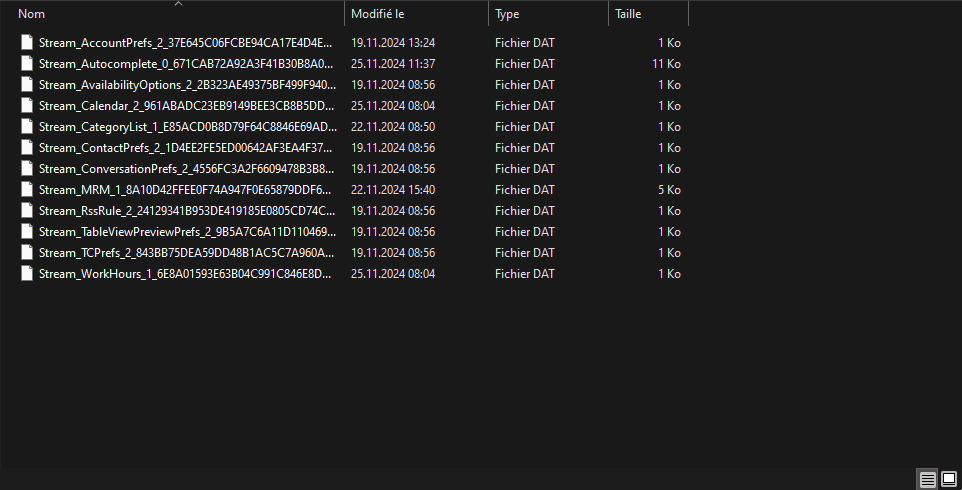
Emplacement Menu Démarrer
Emplacement des raccourcis du menu démarrer
shell:start menu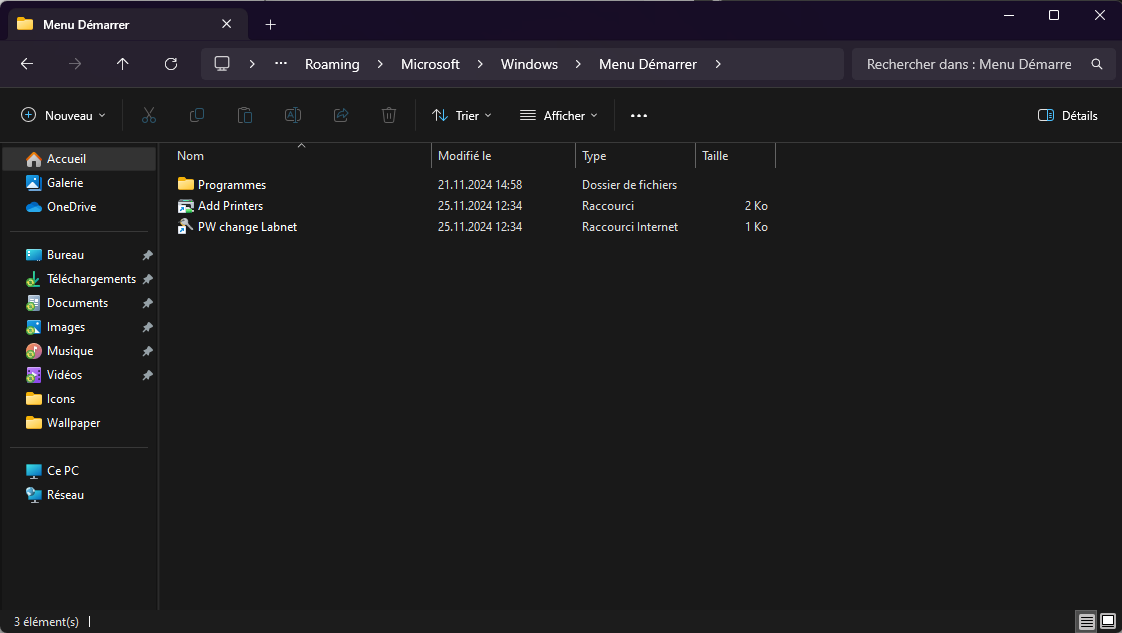
Lancer Programme au Login
Emplacement où mettre les raccourcis des logiciels à lancer au démarrage de la session
shell:startup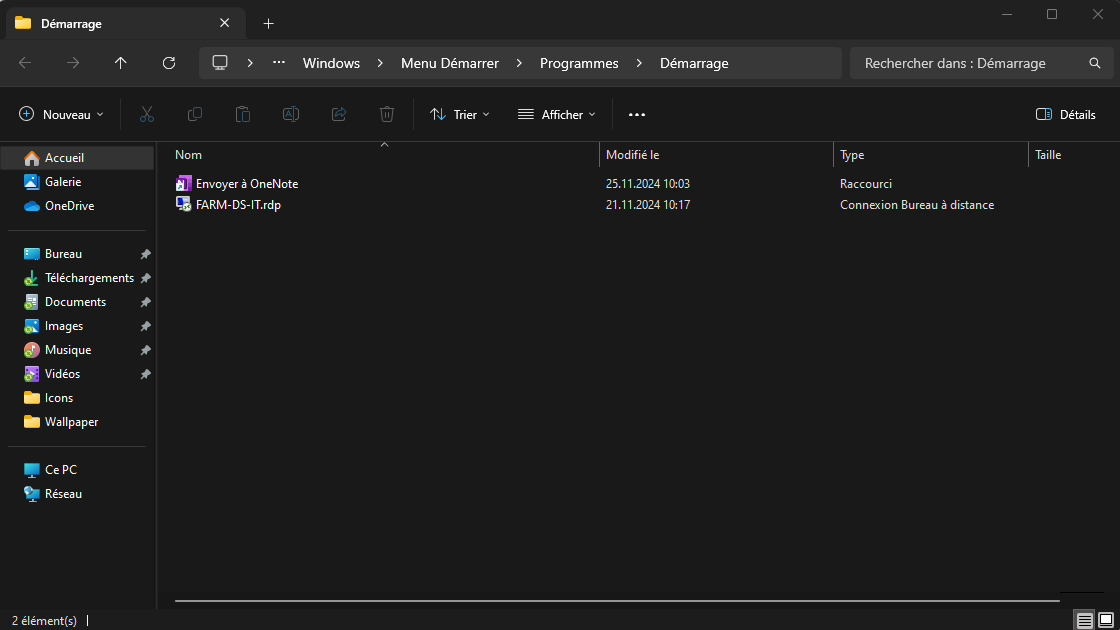
Sources
Liste de source avec copie du contenue.
Sources
shell shortcut
| Description | Shell: folder shortcut | Equivalent | System | User |
|---|---|---|---|---|
| Display installed Windows Updates | shell:AppUpdatesFolder | Control Panel ➞ Programs and Features ➞ Installed updates | System folder | |
| Open the user’s Start Menu\Administrative Tools folder (if any) | shell:Administrative Tools | %LocalAppData%\Microsoft\Windows\Start Menu\Programs\Administrative Tools\ = C:\Users\<username>\AppData\Local\Microsoft\Windows\Start Menu\Programs\Administrative Tools |
User folder | |
| Open All Users Start Menu\Administrative Tools folder | shell:Common Administrative Tools | %ProgramData%\Microsoft\Windows\Start Menu\Programs\Administrative Tools\ =C:\ProgramData\Microsoft\Windows\Start Menu\Programs\Administrative Tools |
System Folder | |
| Open the Public Application Data folder | shell:Common AppData | %ProgramData% = C:\ProgramData |
System folder | |
| Open the user’s Application Data folder | shell:AppData | %AppData% = C:\Users\<username>\AppData\Roaming\ | User folder | |
| Open the user’s Application Data folder | shell:Local AppData | %LocalAppData% = C:\Users\<username>\AppData\Local\ | User folder | |
| Apps folder | shell:appsFolder | |||
| Open the Temporary Internet Files folder | shell:Cache | %LocalAppData%\Microsoft\Windows\iNetCache\ = C:\Users\<username>\AppData\Local\Microsoft\Windows\iNetCache |
Internet Explorer | User folder |
| Open the user’s certificates folder | shell:SystemCertificates | %AppData%\Microsoft\System Certificates\ = C:\Users\<username>\AppData\Roaming\Microsoft\System Certificates |
User folder | |
| Open the Client Side Cache Offline Files folder, if supported | shell:CSCFolder | Client Side Cache, if enabled | User folder | |
| Open the folder where files are stored before being burned to disc | shell:CD Burning | %LocalAppData%\Microsoft\Windows\Burn\Burn\ = C:\Users\<username>\AppData\Local\Microsoft\Windows\Burn\Burn |
User folder | |
| Open the user’s Windows Contacts folder | shell:Contacts | %UserProfile%\Contacts\ = C:\Users\<username>\Contacts | User folder | |
| Open the Internet Explorer Cookies folder | shell:Cookies | %LocalAppData%\Microsoft\Windows\iNetCookies\ = C:\Users\<username>\AppData\Local\Microsoft\Windows\iNetCookies |
Internet Explorer | User folder |
| Open the user’s Credentials folder | shell:CredentialManager | %AppData%\Microsoft\Credentials\ = C:\Users\<username>\AppData\Roaming\Microsoft\Credentials |
User folder | User folder |
| Open the list of Network Connections | shell:ConnectionsFolder | Control Panel ➞ Network Connections | Control Panel | |
| Display the Control Panel | shell:ControlPanelFolder | Control Panel | Control Panel | |
| Open the user’s encryption keys folder | shell:Cryptokeys | %AppData%\Microsoft\Crypto\ = C:\Users\<username>\AppData\Roaming\Microsoft\Crypto |
User folder | |
| Open the user’s desktop folder | shell:Desktop | Desktop merged from %UserProfile%\Desktop + %Public%\Desktop\ | Public folder | User folder |
| Open the Public Desktop | shell:Common Desktop | %Public%\Desktop\ = C:\Users\Public\Desktop |
System folder | |
| Opens the user’s AppData\Roaming\Microsoft\Protect folder | shell:DpAPIKeys | %AppData%\Microsoft\Protect\ = C:\Users\<username>\AppData\Roaming\Microsoft\Protect |
User folder | |
| Open the Public Documents folder | shell:Common Documents | %Public%\Documents\ = C:\Users\Public\Documents |
System folder | |
| Open the user’s downloads folder | shell:Downloads | %UserProfile%\Downloads\ = C:\Users\<username>\Downloads | User folder | |
| Open the Public Downloads folder | shell:CommonDownloads | %Public%\Downloads\ = C:\Users\Public\Downloads |
System folder | |
| Open the Internet Explorer Favorites folder | shell:Favorites | %UserProfile%\Favorites\ = C:\Users\<username>\Favorites |
User folder | |
| Open the Fonts folder | shell:Fonts | %SystemRoot%\Fonts = C:\Windows\Fonts |
System folder | |
| Open the user folder of downloaded Sidebar Gadgets | shell:Gadgets | Internet Explorer | ||
| Open the default Sidebar Gadgets folder | shell:Default Gadgets | System folder | ||
| Open the Games folder | shell:Games | System folder | ||
| Open the user’s Game Explorer folder | shell:GameTasks | %LocalAppData%\Microsoft\Windows\GameExplorer\ = C:\Users\<username>\AppData\Local\Microsoft\Windows\GameExplorer |
User folder | |
| Open the user’s History folder | shell:History | %LocalAppData%\Microsoft\Windows\History\ = C:\Users\<username>\AppData\Local\Microsoft\Windows\History |
User folder | |
| Open the HomeGroup folder | shell:HomeGroupFolder | System folder | ||
| Open the HomeGroup folder for the currently logged-on user (if any) | shell:HomeGroupCurrentUserFolder | System folder | ||
| Launches Internet Explorer Applets and applications | shell:InternetFolder | Internet Explorer | ||
| Open the hidden ImplicitAppShortcuts folder | shell:ImplicitAppShortcuts | %AppData%\Microsoft\InternetExplorer\ImplicitAppShortcuts\ = C:\Users\<username>\AppData\Roaming\Microsoft\Internet Explorer\ImplicitAppShortcuts |
Internet Explorer | User folder |
| Open the Libraries folder | shell:Libraries | Libraries | Library | |
| Open the Documents library | shell:DocumentsLibrary | Libraries\Documents | Library | |
| Display public libraries, if any | shell:PublicLibraries | %Public%\Libraries\ = C:\Users\Public\Libraries | Library | |
| Display your Music library | shell:MusicLibrary | Libraries\Music | Library | |
| Open the Public Music folder | shell:CommonMusic | %Public%\Music\ = C:\Users\Public\Music | Multimedia | |
| Open the user’s Music folder | shell:My Music | %UserProfile%\Music\ = C:\Users\<username>\Music | User folder | |
| Open the Sample Music folder | shell:SampleMusic | %Public%\Music\Sample Music\ = C:\Users\Public\Music\SampleMusic | Multimedia | |
| Open the user’s Pictures\Slide Shows folder (if present) | shell:PhotoAlbums | |||
| Account Pictures | Shell:AccountPictures | %AppData%\Microsoft\Windows\Account Pictures\ = C:\Users\<username>\AppData\Roaming\Microsoft\Windows\Account Pictures |
||
| Display your Pictures library | shell:PicturesLibrary | Libraries\Pictures (previously My Pictures) = C:\Users\<username>\Pictures |
Library | User folder |
| Open the Public Pictures folder | shell:CommonPictures | %Public%\Pictures\ = C:\Users\Public\Pictures | Multimedia | |
| Open the Sample Pictures folder | shell:SamplePictures | %Public%\Pictures\Sample Pictures\ = C:\Users\Public\Pictures\Sample Pictures | Multimedia | |
| Open the Windows Photo Gallery Original Images folder, if installed | shell:Original Images | Multimedia | ||
| Display your Videos library | shell:VideosLibrary | Libraries\Videos | Library | |
| Open the user’s Links folder | shell:Links | %UserProfile%\Links\ = C:\Users\<username>\Links | User folder | |
| Open the Computer folder | shell:MyComputerFolder | "This PC" | System folder | |
| Open the user’s Network Places folder | shell:NetHood | %AppData%\Microsoft\Windows\Network Shortcuts\ = C:\Users\<username>\AppData\Roaming\Microsoft\Windows\Network Shortcuts |
User folder | |
| Open the Network Places folder | shell:NetworkPlacesFolder | "Network" | System folder | |
| Display links provided by your PC manufacturer (if any) | shell:OEM Links | System folder | ||
| Open the user’s Documents folder | shell:Personal | %UserProfile%\Documents\ = C:\Users\<username>\Documents | User folder | |
| Open the user’s printer shortcuts folder | shell:PrintHood | %AppData%\Microsoft\Windows\Printer Shortcuts\ = C:\Users\<username>\AppData\Roaming\Microsoft\Windows\Printer Shortcuts |
User folder | |
| Open the user’s profile folder | shell:Profile | %UserProfile% = C:\Users\<username> | User folder | |
| Access shortcuts pinned to the Start menu or Taskbar | shell:User Pinned | %AppData%\Microsoft\Internet Explorer\Quick Launch\User Pinned\ = C:\Users\<username>\AppData\Roaming\Microsoft\Internet Explorer\Quick Launch\User Pinned |
User folder | |
| Open the user’s \Music\Playlists folder | shell:Playlists | |||
| Open the folder holding all user profiles | shell:UserProfiles | C:\Users | System folder | |
| Open the Printers folder | shell:PrintersFolder | Control Panel ➞ Printers | System folder | |
| Open the user’s Start Menu Programs folder | shell:Programs | %AppData%\Microsoft\Windows\Start Menu\Programs\ = C:\Users\<username>\AppData\Roaming\Microsoft\Windows\Start Menu\Programs |
User folder | |
| Open the Public Start Menu Programs folder | shell:Common Programs | %ProgramData%\Microsoft\Windows\Start Menu\Programs\ =C:\ProgramData\Microsoft\Windows\Start Menu\Programs |
System folder | |
| Open the Control Panel "Install a program from the network" applet | shell:AddNewProgramsFolder | Control Panel ➞ Get Programs from the network | Control Panel | |
| Open the Control Panel "Uninstall or change a program" applet | shell:ChangeRemoveProgramsFolder | Control Panel ➞ Uninstall or change a program | Control Panel | |
| Open the Program Files folder | shell:ProgramFiles | %ProgramFiles% = C:\Program Files |
System folder | |
| Open the Program Files\Common Files folder | shell:ProgramFilesCommon | %ProgramFiles%\Common Files\ = C:\Program Files\Common Files |
System folder | |
| Display 32-bit programs stored on 64-bit Windows, or the \Program Files folder on 32-bit Windows |
shell:ProgramFilesX86 | %ProgramFiles(x86)% = C:\ProgramFiles (x86) | System folder | |
| Open the Common Files for 32-bit programs stored on 64-bit Windows, Or the Program Files\Common Files folder on 32-bit Windows |
shell:ProgramFilesCommonX86 | %ProgramFiles(x86)%\Common Files\ = C:\ProgramFiles (x86)\Common Files |
Internet Explorer | |
| Open the Public Game Explorer folder | shell:PublicGameTasks | %ProgramData%\Microsoft\Windows\GameExplorer\ =C:\ProgramData\Microsoft\Windows\GameExplorer |
System folder | |
| Open the Users\Public folder (Shared files) | shell:Public | %Public% = C:\Users\Public | Public folder | |
| Open the Quick Launch folder (disabled by default) | shell:Quick Launch | %AppData%\Microsoft\Internet Explorer\Quick Launch\ = C:\Users\<username>\AppData\Roaming\Microsoft\Internet Explorer\Quick Launch |
User folder | |
| Open the user’s Recent Documents folder | shell:Recent | %AppData%\Microsoft\Windows\Recent\ = C:\Users\<username>\AppData\Roaming\Microsoft\Windows\Recent |
User folder | |
| Open the Recycle Bin | shell:RecycleBinFolder | "Recycle Bin" | System folder | |
| Open the Windows Resources folder (themes are stored here) | shell:ResourceDir | %SystemRoot%\Resources\ = C:\Windows\Resources | System folder | |
| Display the user’s Ringtones folder | shell:Ringtones | %LocalAppData%\Microsoft\Windows\Ringtones\ = C:\Users\<username>\AppData\Local\Microsoft\Windows\Ringtones |
User folder | |
| Open the Public ringtones folder. | shell:CommonRingtones | %ProgramData%\Microsoft\Windows\Ringtones\ =C:\ProgramData\Microsoft\Windows\Ringtones |
System folder | |
| Open the Saved Games folder | shell:SavedGames | %UserProfile%\Saved Games\ = C:\Users\<username>\Saved Games | User folder | |
| Open the saved searches folder | shell:Searches | %UserProfile%\Searches\ = C:\Users\<username>\Searches | User folder | |
| Open the Windows Search tool | shell:SearchHomeFolder | Windows Explorer Search box | System folder | |
| Open the user’s Send To folder | shell:SendTo | %AppData%\Microsoft\Windows\SendTo\ = C:\Users\<username>\AppData\Roaming\Microsoft\Windows\SendTo |
User folder | |
| Open the user’s Start Menu folder | shell:Start Menu | %AppData%\Microsoft\Windows\Start Menu\ = C:\Users\<username>\AppData\Roaming\Microsoft\Windows\Start Menu |
User folder | |
| Open the Public Start Menu folder | shell:Common Start Menu | %ProgramData%\Microsoft\Windows\Start Menu\ =C:\ProgramData\Microsoft\Windows\Start Menu |
System folder | |
| Open the user’s Startup folder | shell:Startup | %AppData%\Microsoft\Windows\Start Menu\Programs\Startup\ = C:\Users\<username>\AppData\Roaming\Microsoft\Windows\Start Menu\Programs\Startup |
User folder | |
| Open the Public Startup folder | shell:Common Startup | %ProgramData%\Microsoft\Windows\Start Menu\Programs\Startup\ =C:\ProgramData\Microsoft\Windows\Start Menu\Programs\Startup |
System folder | |
| Display Sync Centre | shell:SyncCenterFolder | Control Panel ➞ Sync Centre | Windows Sync Centre | |
| Display Sync Centre Conflicts | shell:ConflictFolder | Control Panel ➞ Sync Conflicts | Windows Sync Centre | |
| Display Sync Centre Results | shell:SyncResultsFolder | Control Panel ➞ Sync Results | Windows Sync Centre | |
| Open the Sync Centre Setup options | shell:SyncSetupFolder | Control Panel ➞ Setup new Sync Partnerships | Windows Sync Centre | |
| Open the Windows System folder | shell:System | %SystemRoot%\System32\ = C:\Windows\System32 | System folder | |
| Open the Windows System folder for 32-bit files on 64-bit Windows, Or \Windows\System32 on 32-bit Windows |
shell:Systemx86 | %SystemRoot%\SysWOW64\ = C:\Windows\SysWOW64 | System folder | |
| Open the user’s Templates folder | shell:Templates | %AppData%\Microsoft\Windows\Templates\ = C:\Users\<username>\AppData\Roaming\Microsoft\Windows\Templates |
User folder | |
| Open the Public Templates folder | shell:Common Templates | %ProgramData%\Microsoft\Windows\Templates\ =C:\ProgramData\Microsoft\Windows\Templates |
System folder | |
| Display further user tiles | shell:Roaming Tiles | %LocalAppData%\Microsoft\Windows\Roaming Tiles\ = C:\Users\<username>\AppData\Local\Microsoft\Windows\RoamingTiles |
User folder | |
| Display your user tiles (the images you can use for your account) | shell:UserTiles | %UserProfile%\AppData\Roaming\Microsoft\Windows\AccountPictures\ = C:\Users\<username>\AppData\Roaming\Microsoft\Windows\AccountPictures |
User folder | |
| Open the Public user tiles folder | shell:PublicUserTiles | %ProgramData%\Microsoft\User Account Pictures\ = C:\ProgramData\Microsoft\User Account Pictures\ |
System folder | |
| Open the user’s Videos folder | shell:My Video | %UserProfile%\Videos\ = C:\Users\<username>\Videos | User folder | |
| Open the Public Video folder | shell:CommonVideo | %Public%\Videos\ = C:\Users\Public\Videos | Multimedia | |
| Open the Sample Videos folder | shell:SampleVideos | %Public%\Videos\Sample Videos\ = C:\Users\Public\Videos\Sample videos | Multimedia | |
| Open the Windows installation folder (usually \Windows) | shell:Windows | %SystemRoot% = C:\Windows | System folder |
Liens sources : https://ss64.com/nt/shell.html
Sources
Win + R Shortcuts
Control Panel
- CONTROL: opens the control panel window
- CONTROL ADMINTOOLS: opens the administrative tools
- CONTROL KEYBOARD: opens keyboard properties
- CONTROL COLOUR: opens display properties.Appearance tab
- CONTROL FOLDERS: opens folder options
- CONTROL FONTS: opens font policy management
- CONTROL INTERNATIONAL or INTL.CPL: opens Regional and Language option
- CONTROL MOUSE or MAIN.CPL: opens mouse properties
- CONTROL USERPASSWORDS: opens User Accounts editor
- CONTROL USERPASSWORDS2 or NETPLWIZ: User account access restrictions
- CONTROL PRINTERS: opens faxes and printers available
- APPWIZ.CPL: opens Add or Remove programs utility tool
- OPTIONALFEATURES: opens Add or Remove Windows component utility
- DESK.CPL: opens display properties. Themes tab
- HDWWIZ.CPL: opens add hardware wizard
- IRPROPS.CPL: infrared utility tool
- JOY.CP: opens game controllers settings
- MMSYS.CPL: opens Sound and Audio device Properties. Volume tab
- SYSDM.CPL: opens System properties
- TELEPHON.CPL: Opens phone and Modem options
- TIMEDATE.CPL: Date and Time properties
- WSCUI.CPL: opens Windows Security Center
- ACCESS.CPL: opens Accessibility Options
- WUAUCPL.CPL: opens Automatic Updates
- POWERCFG.CPL: opens Power Options Properties
- AZMAN.MSC: opens authorisation management utility tool
- CERTMGR.MSC: opens certificate management tool
- COMPMGMT.MSC: opens the Computer management tool
- COMEXP.MSC or DCOMCNFG: opens the Computer Services management tool
- DEVMGMT.MSC: opens Device Manager
- EVENTVWR or EVENTVWR.MSC: opens Event Viewer
- FSMGMT.MSC: opens Shared Folders
- NAPCLCFG.MSC: NAP Client configuration utility tool
- SERVICES.MSC: opens Service manager
- TASKSCHD.MSC or CONTROL SCHEDTASKS: opens Schedule Tasks manager
- GPEDIT.MSC: opens Group Policy utility tool
- LUSRMGR.MSC: opens Local Users and Groups
- SECPOL.MSC: opens local security settings
- CIADV.MSC: opens indexing service
- NTMSMGR.MSC: removable storage manager
- NTMSOPRQ.MSC: removable storage operator requests
- WMIMGMT.MSC: opens (WMI) Window Management Instrumentation
- PERFMON or PERFMON.MSC: opens the Performance monitor
- MMC /a: opens empty Console in admin mode
- MDSCHED: opens memory diagnostics tools
- DXDIAG: opens DirectX diagnostics tools
- ODBCAD32: opens ODBC Data source Administrator
- REGEDIT or REGEDT32: opens Registry Editor
- DRWTSN32: opens Dr. Watson
- VERIFIER: opens Driver Verifier Manager
- CLICONFG: opens SQL Server Client Network Utility
- UTILMAN: opens Utility Manager
- COLORCPL: opens color management
- CREDWIZ: back up and recovery tool for user passwords
- MOBSYNC: opens Synchronization center
- MSCONFIG: opens System Configuration Utility
- SYSEDIT: opens System Configuration Editor (careful while using this command)
- SYSKEY: Windows Account Database Security management (careful while using this command)
Windows utility and applications
- EPLORER: Opens windows Explorer
- IEXPLORER: Opens Internet explorer
- WAB: opens Contacts
- CHARMAP: opens Character Map
- WRITE: opens WordPad
- NOTEPAD: opens Notepad
- CALC: opens Calculator
- CLIPBRD: opens Clipbook Viewer
- WINCHAT: opens Microsoft Chat Interface
- SOUNDRECORDER: opens sound recording tool
- DVDPLAY: run CD or DVD
- WMPLAYER: opens Windows Media Player
- MOVIEMK: Opens untitled Windows Movie Maker
- OSK: opens on-screen Keyboard
- MAGNIFY: opens Magnifier
- WINCAL: opens Calendar
- DIALER: opens phone Dialer
- EUDCEDIT: opens Private Character Editor
- NDVOL: opens the mixer volume
- RSTRUI : opens Tool System Restore (For Vista only)
- %WINDIR%\SYSTEM32\RESTORE\rstrui.exe: opens Tool System Restore (for XP only).
- MSINFO32: Opens the System Information
- MRT : launches the utility removal of malware.
- Taskmgr : Opens the Windows Task Manager
- CMD: opens a command prompt
- MIGWIZ: Opens the tool for transferring files and settings from Windows (Vista only)
- Migwiz.exe: Opens the tool for transferring files and settings from Windows (for XP only)
- SIDEBAR: Open the Windows (Vista only)
- Sigverif : Opens the tool for verification of signatures of files
- Winver : Opens the window for your Windows version
- FSQUIRT: Bluetooth Transfer Wizard
- IExpress opens the wizard for creating self-extracting archives. Tutorial HERE
- MBLCTR: opens the mobility center (Windows Vista only)
- MSRA : Opens the Windows Remote Assistance
- Mstsc : opens the tool connection Remote Desktop
- MSDT: opens the diagnostic tools and support Microsoft
- WERCON: opens the reporting tool and solutions to problems (for Vista only)
- WINDOWSANYTIMEUPGRADE: Enables the upgrade of Windows Vista
- WINWORD : opens Word (if installed)
- PRINTBRMUI : Opens migration wizard printer (Vista only)
Disk management
- DISKMGMT.MSC: opens disk management utility
- CLEANMGR: opens disk drive clean up utility
- DFRG.MSC: opens disk defragmenter
- CHKDSK: complete analysis of disk partition
- DISKPART: disk partitioning tool
Connection management
- IPCONFIG: list the configuration of IP addresses on your PC (for more information type IPCONFIG/? in the CMD menu)
- INETCPL.CPL: opens internet properties
- FIREWALL.CPL: opens windows firewall
- NETSETUP.CPL: opens network setup wizard
Miscellaneous commands
- JAVAWS: View the cover of JAVA software (if installed)
- AC3FILTER.CPL: Opens the properties AC3 Filter (if installed)
- FIREFOX: Mozilla launches Firefox (if installed)
- NETPROJ: allow or not connecting to a network projector (For Vista only)
- LOGOFF: closes the current session
- SHUTDOWN: shut down Windows
- SHUTDOWN-A: to interrupt Windows shutdown
- %WINDIR% or %SYSTEMROOT%: opens the Windows installation
- %PROGRAMFILES%: Opens the folder where you installed other programs (Program Files)
- %USERPROFILE%: opens the profile of the user currently logged
- %HOMEDRIVE%: opens the browser on the partition or the operating system is installed
- %HOMEPATH%: opens the currently logged user C: \ Documents and Settings \ [username]
- %TEMP%: opens the temporary folder
- VSP1CLN: deletes the cache for installation of the service pack 1 for Vista
- System File Checker (Requires Windows CD if the cache is not available):
- SFC / scannow: immediately scans all system files and repairs damaged files
- SFC / VERIFYONLY: scans only those files system
- SFC / Scanfil = "name and file path": scans the specified file, and repaired if damaged
- SFC / VERIFYFILE = "name and file path": Scans only the file specified
- SFC / scanonce: scans the system files on the next restart
- SFC / REVERT: return the initial configuration (For more information, type SFC /? In the command prompt CMD.
Liens sources : https://ict.ken.be/windows-key-r-and-command-line-shortcuts.aspx